Launch Options and Environment Variables
Preface
Linux gaming is far more intuitive today than it was years ago. There are still advanced launch options and configurations that can be ran from Bazzite though. This guide will show off examples of advanced gaming tweaks that can be done on a Bazzite installation.
Configuration Templates for DXVK, MangoHud, & vkBasalt
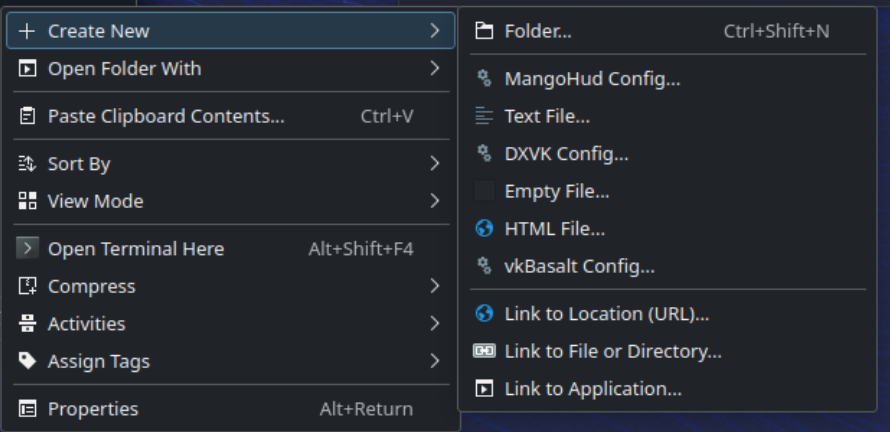
Bazzite users can use templates for some of the pre-installed tools which can be accessed by right clicking anywhere in the file manager. There are also applications like Mango Juice that acts as a graphical method of configuring Mangohud.
Steam Launch Options and Shortcuts
Steam launch options allow you to pass environment variables, arguments, and commands to games when they start. Bazzite includes several shortcuts and UX improvements to make common launch options easier to use, especially on handheld devices.
Common Launch Option Patterns
Most Steam launch options follow this pattern: ENVIRONMENT_VARIABLES command_or_script %command%
%command%represents the game executable and must be included- Environment variables go before
%command% - Additional arguments can go after
%command%
Examples:
PROTON_LOG=1 %command%                    # Enable Proton logging
SteamDeck=0 %command%                     # Disable Steam Deck mode
PROTON_ENABLE_NGX_UPDATER=1 %command%     # Enable DLSS updates
Bazzite's Launch Option Shortcuts
Bazzite includes several shortcuts to simplify common launch options:
For Steam Deck Mode Control
sd0 %command%- Shorthand forSteamDeck=0 %command%- Disables Steam Deck specific features that may conflict with your setup
- Example: Expedition 33 hides most graphics settings unless you set
SteamDeck=0, and enforces lower than lowest settings.
For NVIDIA Users (dlss-swapper)
dlss-swapper %command%- Enables latest DLSS presets with NGX updater- Replaces:
PROTON_ENABLE_NGX_UPDATER=1 DXVK_NVAPI_DRS_SETTINGS=NGX_DLSS_SR_OVERRIDE=on,NGX_DLSS_RR_OVERRIDE=on,NGX_DLSS_FG_OVERRIDE=on,NGX_DLSS_SR_OVERRIDE_RENDER_PRESET_SELECTION=render_preset_latest,NGX_DLSS_RR_OVERRIDE_RENDER_PRESET_SELECTION=render_preset_latest %command%
- Replaces:
dlss-swapper-dll %command%- Same as above but skips NGX updater
Where to Set Launch Options
- Right-click game in Steam library
- Select Properties
- In the General tab, find Launch Options field
- Enter your launch options

Frame Rate Limiting Issues and Inconsistency
When using Gamescope, framerate limits can be applied in several ways. Unfortunately not all methods work for every enviroment, game, or hardware configuration.
Many inconsistencies can be observed, especially when applying framerate limits in desktop mode.
The tables below show the behavior of different framerate limiting methods.
Steam Game Mode (Steam Gaming Mode Session)
| Method | Setup steps | Requires V-Sync On In-Game? | Change limit without restarting game? | Latency | Preferred | Notes |
|---|---|---|---|---|---|---|
| Gamescope FPS limiter | Use Quick Access Menu > Performance > Framerate Limit | No | Yes | Meh | Preferred | Automatically turns v-sync on at driver-level whenever the framerate cap is enabled. Additional latency will be introduced. |
| MangoAPP (embedded) | N/A - doesn't work at all. | - | - | - | – | Frame limiter settings from mangoapp are ignored in game mode/deck mode. Use the slider or external mangohud instead. |
| MangoHUD (external) | Launch Options: MANGOHUD=1 %command% |
No | Yes | Meh | – | Set fps_limit=0,30,60,120... (0=no cap) in MangoHud.conf. May clash with MangoAPP. |
| DXVK/VKD3D runtime frame limiter | DXVK (D3D8/9/10/11): DXVK_FRAME_RATE={fps} %command%VKD3D-Proton (D3D12): VKD3D_FRAME_RATE={fps} %command% |
No | No | Best | – | Applies only to DXVK/VKD3D titles (no effect on native OpenGL or native Vulkan). |
Desktop Mode (GNOME / KDE Plasma Desktop Session)
| Method | Setup steps | Requires V-Sync On In-Game? | Change limit without restarting game? | Latency | Preferred | Notes |
|---|---|---|---|---|---|---|
| Gamescope FPS limiter | Launch Options: gamescope -r {fps} -- %command% / --framerate-limit {fps} |
Yes | Yes | Meh | – | Use gamescopectl debug_set_fps_limit {fps} to change the limiter value live without restarting. |
| MangoAPP (embedded) | Launch Options: gamescope --mangoapp -- %command% |
Yes | Yes | Meh | – | Caps are sometimes not effective. Set fps_limit=0,30,60,120... (0=no cap) in MangoHud.conf (or via MANGOHUD_CONFIG=...). Add show_fps_limit to preset to see in game. Change with ShiftL+F1. |
| MangoHUD (external) | Launch Options: MANGOHUD=1 gamescope -- %command% |
No | Yes | Meh | Preferred | Caps are almost always effective. Set fps_limit=0,30,60,120... (0=no cap) in MangoHud.conf (or via MANGOHUD_CONFIG=...). Add show_fps_limit to preset to see in game. Change with ShiftL+F1. |
| DXVK/VKD3D runtime frame limiter | DXVK (D3D8/9/10/11): DXVK_FRAME_RATE={fps} %command%VKD3D-Proton (D3D12): VKD3D_FRAME_RATE={fps} %command% |
No | No | Best | – | In-process/API-level caps; excellent timing, but you must restart to change. |
If your framerate limiter isn't working, the following steps can often help:
- Disable adaptive sync/VRR or remove the
--adaptive-syncflag from your gamescope args. - Set vsync in-game to "on".
Advanced Launch Option Management for ScopeBuddy
For users who need more complex launch option management, consider the ScopeBuddy documentation for even more advanced Gamescope launch option management.