Post-Installation Setup
First Boot Setup
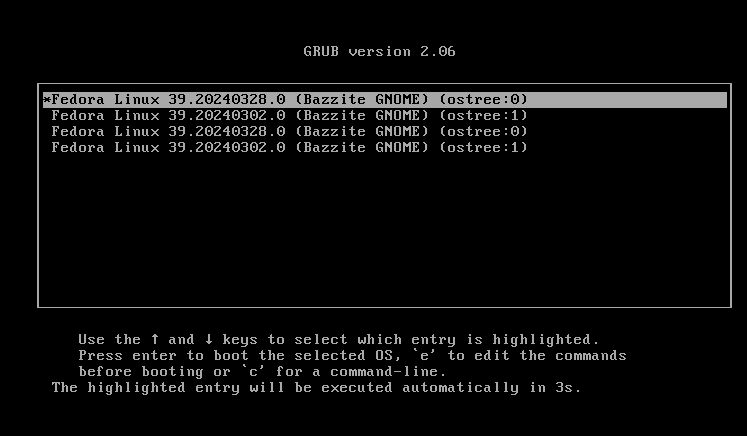
The first boot will show a screen showing your current and last deployment. It is important to note that the GRUB menu can be used to rollback Bazzite deployments if you encounter issues.
Read more about this in the Updates, Rollback, and Rebasing documentation.
Setting Up Steam Gaming Mode (Bazzite-Deck Images Only)

If you selected to use Steam Gaming Mode before downloading the ISO, then you will be on the Bazzite-Deck version. After completing all of the above, then your next boot will be in Steam Gaming Mode which requires additional setup for Steam.
Read the Bazzite-Deck documentation for more information on the HTPC/Handheld images.
Configure System Settings
It is important to configure the system settings on a first boot to personalize your desktop especially if you notice the scaling is incorrect on first-boot. Open the system settings application in the desktop session to start configuring settings.
Scaling Settings
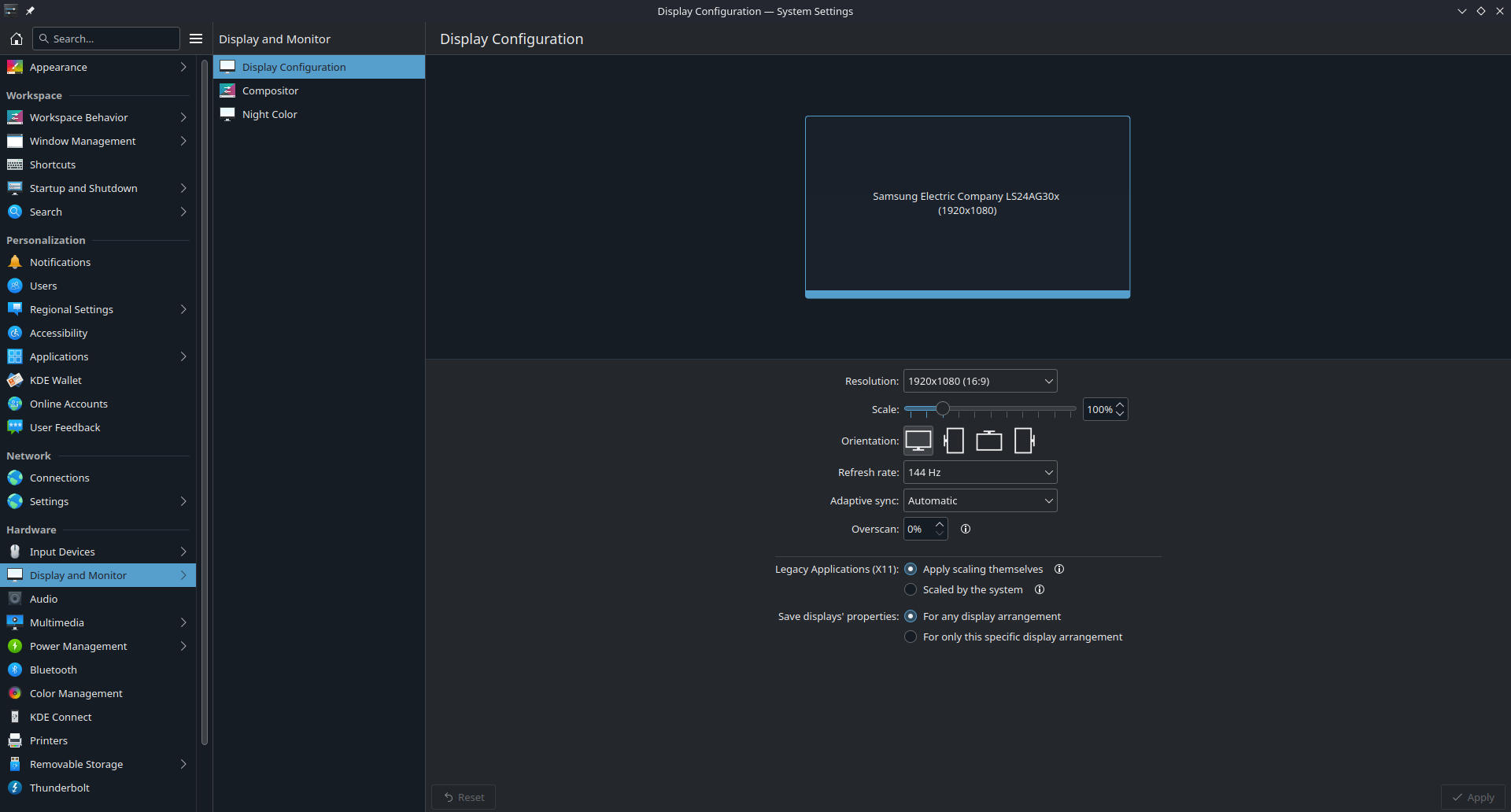
KDE Plasma's System Settings application
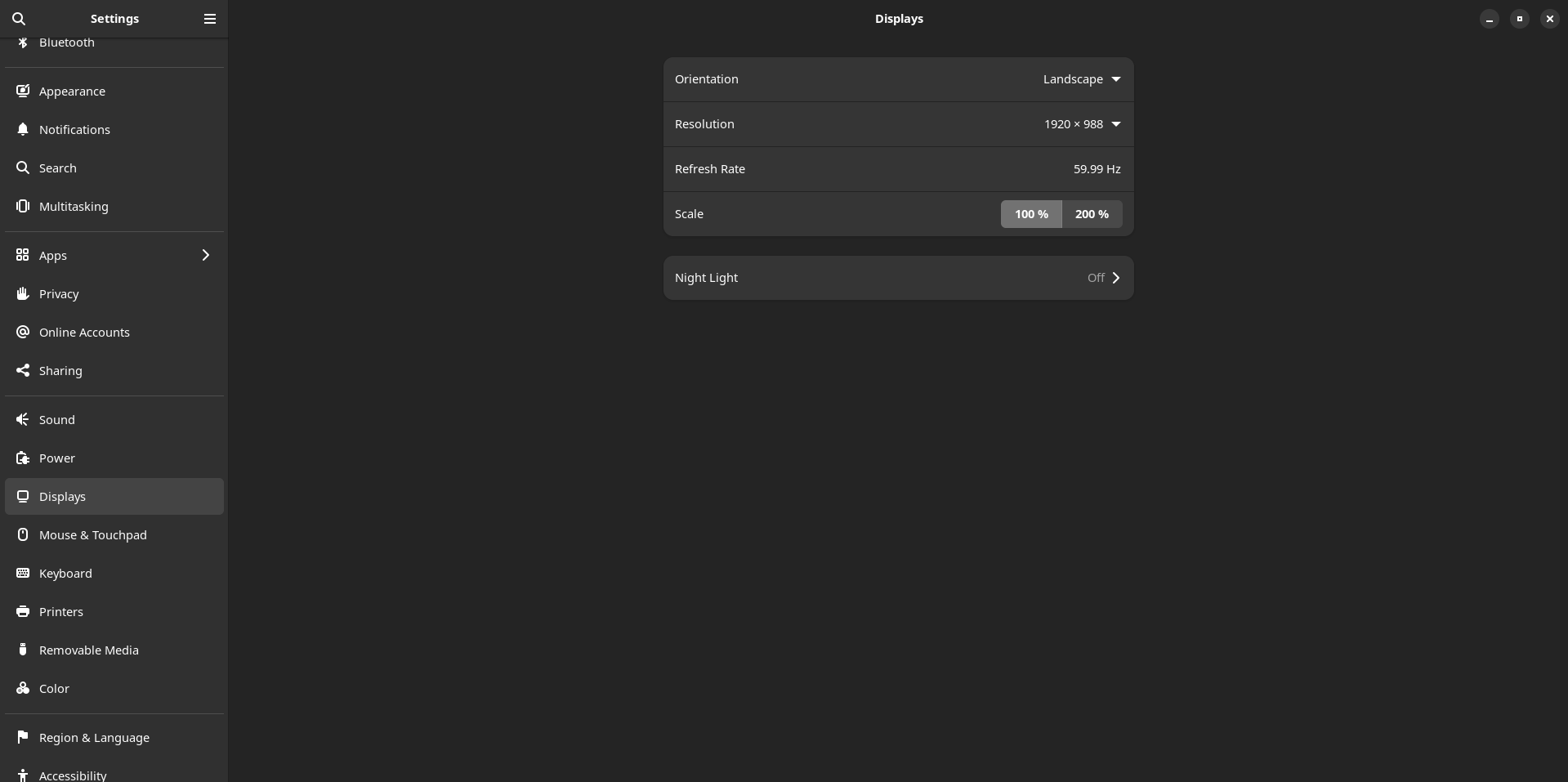
GNOME's Settings application
Adjust the system settings to your preference.
Changing Default Password
(If it wasn't changed in the legacy ISO installer)
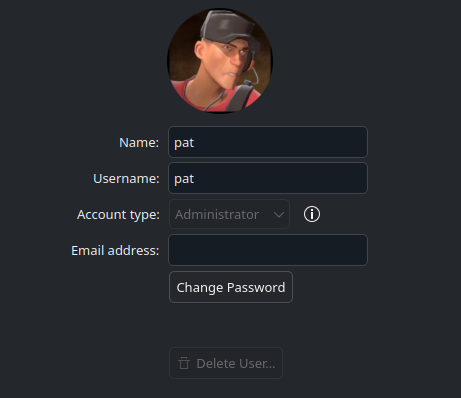
Change it in the settings of Desktop Mode under the "User" category.
Dual-Boot Post-Configuration Setup
Note
This only applies to Bazzite users who are dual-booting with Windows.
Show both your Windows and Bazzite installations in the GRUB menu to select from at boot by entering this command into the terminal:
ujust regenerate-grub
Bazzite as Primary Boot
If the OS Boot Manager has set Windows Boot Manager to be the first boot priority, then this may result in booting directly into Windows after the install instead of Bazzite. You may have to fix this in your BIOS settings.
Take note that the GRUB menu might not show up. In such case, spam the ↓ key when booting up.
Boot into Windows from Steam
Adds a script in Steam to boot into Windows.
ujust setup-boot-windows-steam
Expanding storage size in a Windows dual-boot scenario
Note
This is for future reference after dual-booting for a while.
Watch this video tutorial on how to expand the storage:
Next Steps
Configure your system with the Bazzite Portal application
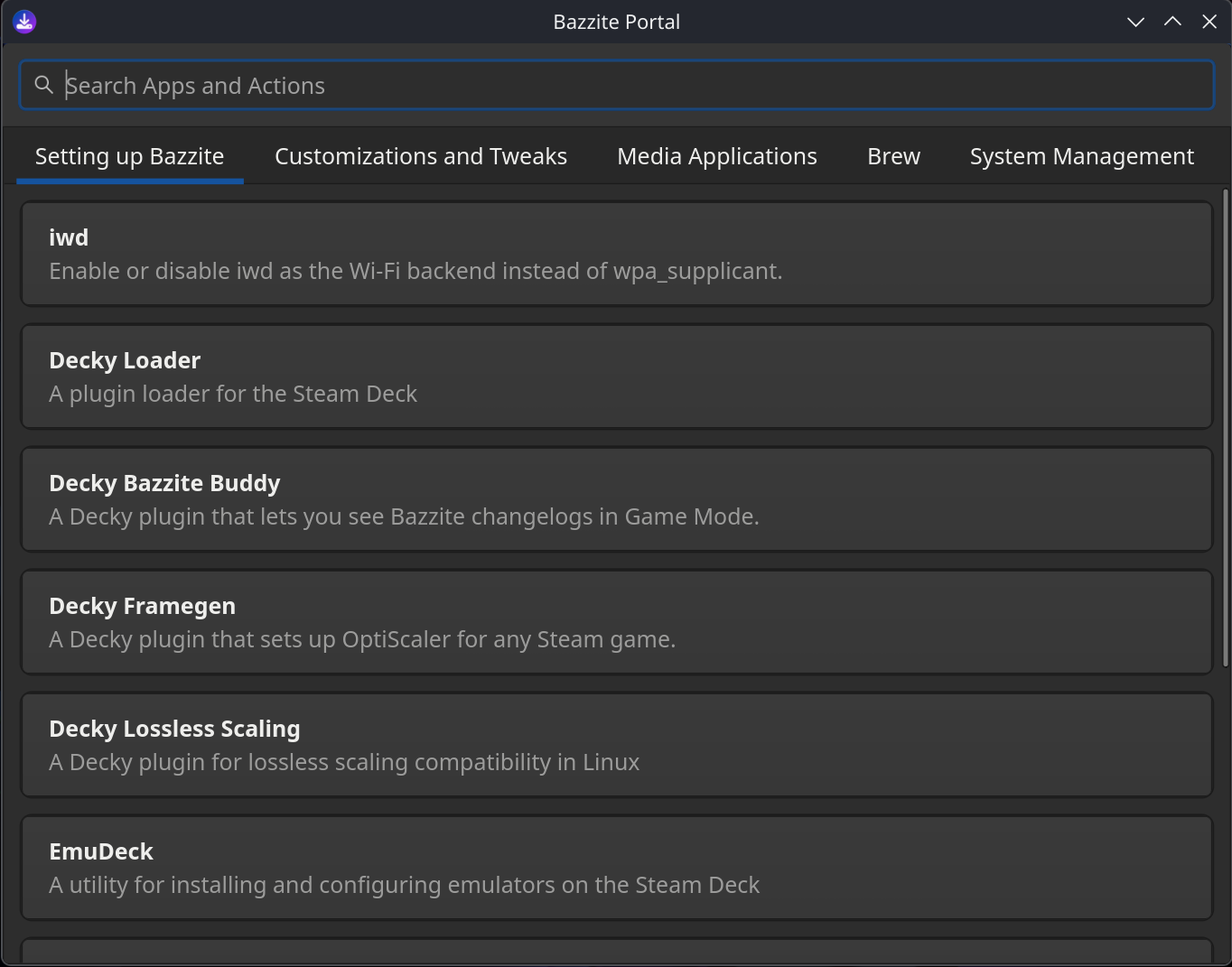
Familiarize yourself with the Bazzite Portal which does system maintenance, install a small subset of additional applications, and configure advanced system settings.
Install additional software with the Bazaar app store

Install additional software for Bazzite in the Bazaar app store. This is the place where you will be getting most of your applications, but if you require something that isn't found here then look into the Installing and Managing Applications.
Ready to Game
You have now installed Bazzite!
Get started with gaming by reading our Gaming Guide which covers:
- Installing and configuring Steam and Proton for Windows game compatibility
- Setting up Lutris and other game launchers (Epic Games, GOG, Amazon Games, etc.)
- Managing and modding games
- Troubleshooting common gaming issues
Enjoy Bazzite and make sure to report any bugs you encounter so they can be fixed ASAP if possible.