Managing and Modding Games
Compatibility Layers & Managing Windows Games

Windows games need to run through a compatibility layer (like Proton) on Bazzite. Install and update to the latest GE-Proton, Luxtorpeda, and other tools using ProtonPlus.
Protontricks
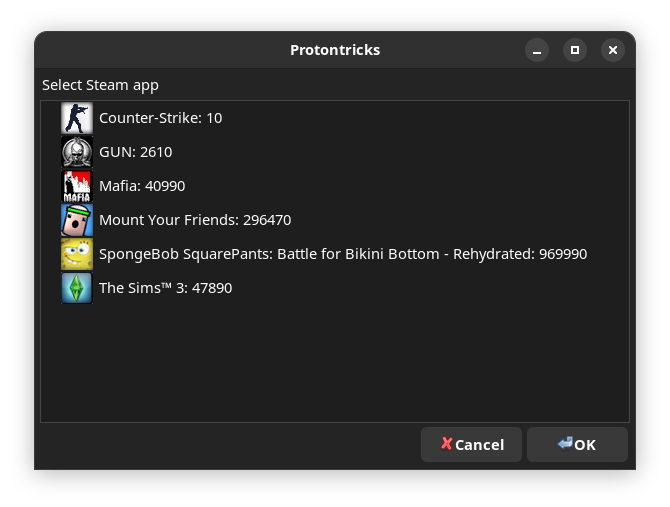
Some games require Protontricks (pre-installed) or Winetricks (for non-Steam games, included with Lutris) to function properly by installing Windows DLLs into the prefix.
Hidden Files in File Manager
Note
Winecfg contains the option to show hidden files for Windows programs that require the filepicker.
Desktop Linux contains hidden files and directories that may include important files related to gaming.
Show hidden files by clicking the hamburger menu (3 horizontal lines in the file manager) and selecting "Show Hidden Files" to see every directory and file that is hidden by default.
These directories and files all start with a . before it
What is a Proton (or Wine) Prefix?
It's the glue that holds everything together when you run a game through Proton and also is responsible for containing any of the files the game would drop outside of the installation folder.
Important
This installation folder for Steam games is usually in: .../steamapps/common/<game>
Many PC games drop files in Windows folders like "My Documents" or "AppData" and both can be found in your prefix directory. This prefix directory may be useful for modding your games, backing up your saves, or configuration files.
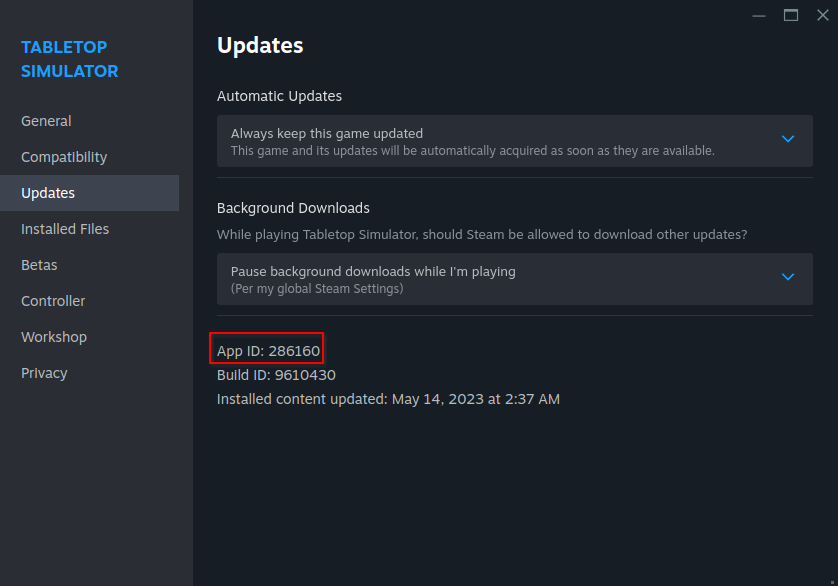
For games on Steam, they are located in your ~/.steam/root/steamapps/compatdata/ folder, and then the AppID number of the game:
- This ID by going into the game's properties on Steam in the games Properties >> Updates >> App ID
- Continue to
.../pfx/drive_c/and wherever the game drops the file on Windows.
Non-Steam games can have the prefix folder anywhere you specify. By default Lutris uses ~/Games as the main folder.
Broken Proton Prefix?
Warning
Deleting a Proton prefix can delete saves and configuration files!
Open the prefix directory for the game and delete the data inside of it. Be careful not to delete the root .../compatdata directory (or ~/Games, or the custom directory that you set, for non-Steam games) which would remove the prefix data for all of the games!
Modding
Steam Workshop is the most straightforward method to obtain mods, but is not supported for every title and requires you to own the game on Steam. Some mod managers have Linux ports like r2modman.
Adding and replacing game files is still viable in both the game directory and prefix, but there may be some extra steps involved. Some mods require a "WINE DLL OVERRIDE" environment variable in the Steam launch options. For non-Steam Games, use Lutris to open "Wine Configuration" and select the "Libraries" tab to add new overrides.
Example of a DLL override launch option:
**DirectInput8 DLL Override**:
`WINEDLLOVERRIDES="dinput8=n,b" %command%`