Common Issues & Resolution
Steam Big Picture Mode is slow
When you select Steam Menu → View → Big Picture the user interface runs sluggishly, while the games that run through the interface works smoothly.
If you encounter this issue, close Steam completely and start Steam using the Steam Big Picture Mode menu shortcut. Also make sure that Steam Settings → Interface → Enable GPU accelerated rendering in web views (requires restart) is enabled in the Steam settings.
Note: This fix also fixes the performance issues in Steam Gaming Mode on Nvidia GPUs, however, this comes with a drawback that the Steam menu and side menu sometimes do not render properly.
Audio is soft on ASUS ROG Ally hardware
There are two audio devices that appear on the Rog Ally:
- Family 17h/19h/1ah HD Audio Controller
- ROG Ally
Both affect each other's audio volume, so they must be at the same volume level.
Gamepads and handheld joysticks don't work in Desktop Mode
Open Steam Settings → Controller → Non-Game Controller Layouts → Desktop Layout. Click Edit → Enable Steam Input and configure how the controller needs to act as keyboard and mouse in Desktop Mode.
The Right Joystick Sensitivity would usually need to be decreased to somewhere between 50-80%. Otherwise, the mouse cursor will be too fast and will not be reliable.
A feature to control the desktop using a controller was added in KDE Plasma 6.7. This feature conflicts with Steam's emulation method above, so make sure you disable it, or vice versa should you want to use Plasma's native controller support.
Setting Bazzite's Desktop Editions to automatically login
Open System Settings → Colors and Themes → Login Screen. On that screen, tick "Automatically log in", select your user and for the session, select "Plasma" and don't forget to to click on the "Apply" button.
Open the Settings application → Users. Click the Unlock button in the top right corner. Then switch on Automatic Login.
HTPC legacy hardware setup
As Steam Gaming Mode is not supported on some GPUs, the guide below is a way to set up a similar experience using Bazzite's Desktop image.
Enable auto-login and set Steam to automatically launch in Steam's Big Picture Mode for a decent couch gaming experience.
There is a video guide that you can follow for Bazzite's GNOME Desktop image using a Nvidia GPU (before Nvidia hardware could run Steam Gaming Mode, but same idea):
If you are using Bazzite's KDE Plasma image, then you can skip the "Making Gnome look more familiar to Windows users" section, and use the steps above to get auto login working in Bazzite KDE. Then finally set Steam Big Picture Mode to auto-start in Settings → Autostart.
No Wi-Fi or wired connection in Bazzite when dual-booting with Windows
If you are dual-booting Windows with Bazzite and your Wi-Fi/wired connection works in Windows but fails in Bazzite sometimes, it is highly likely this is due to Windows Fast Startup.
Fast Startup is a feature of Windows that puts your computer into a hybrid state between shutdown and hibernation to speed up the time it takes for Windows to start up. However, this setting can lock up hardware devices such as your Wi-Fi, ethernet and perhaps other hardware. One solution is to select the Restart option instead of the Shutdown option, which will perform a full power cycle. However, a better solution is to simply disable Fast Startup.
You can do this by:
- Open Control Panel
- Click on Hardware and Sound
- Click on Change what the power buttons do which is under Power Options
- Click on Change settings that are currently unavailable
- Untick Turn on fast startup (recommended)
- (Optional) Untick Hibernate too if you don't use it as it can cause the same issues as Fast Startup
- Click on Save changes
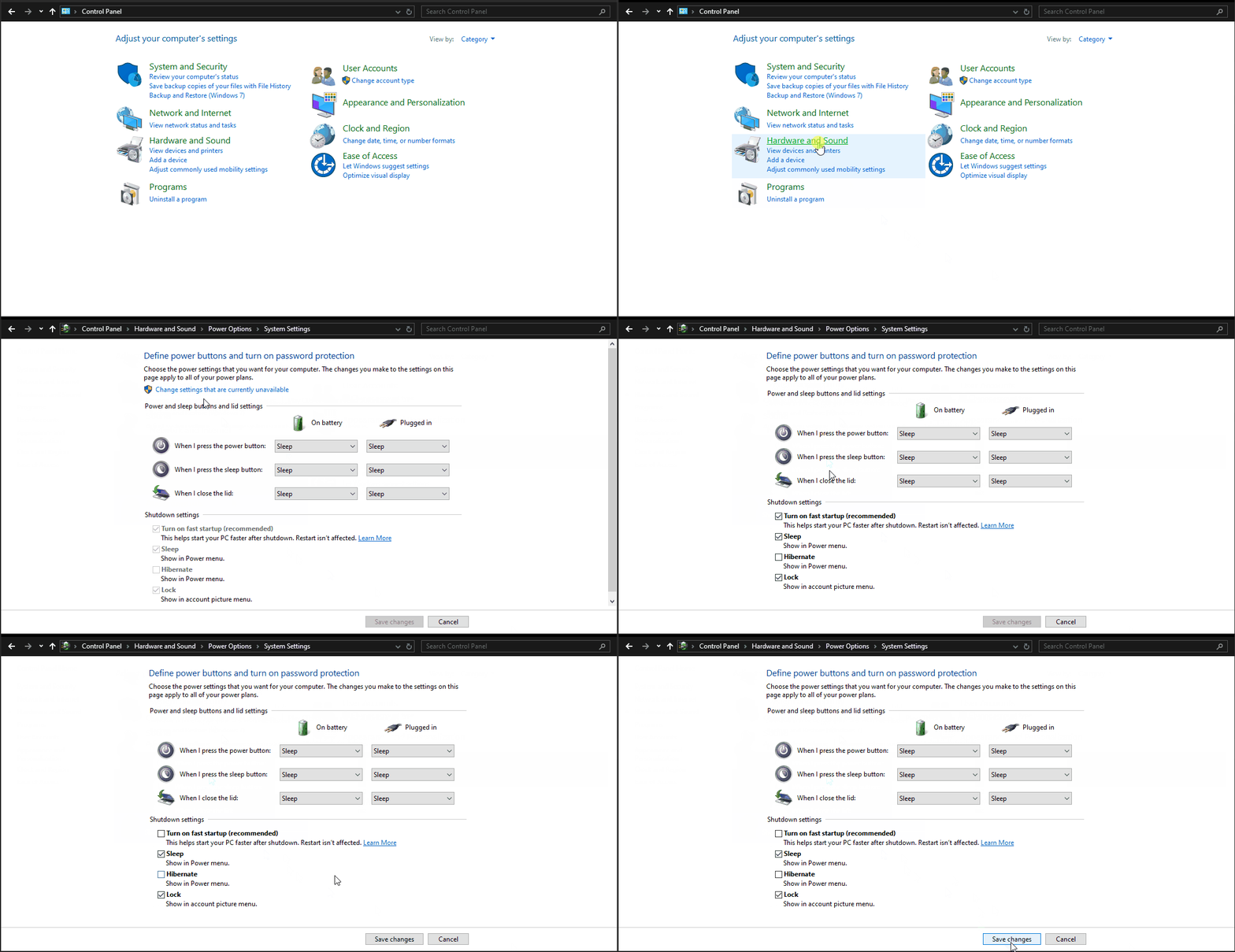
Now if you now select the Shutdown option, Windows will shut down completely and not interfere with Bazzite.
Wi-Fi is slow / Wi-Fi lag spikes
The Wi-Fi power saving feature in Linux may work poorly on some devices. If the problem is not present in Windows, you may try the solution below.
Open the terminal and run ip link show, this will list all your network devices and the output should look something like this:
1: lo: <LOOPBACK,UP,LOWER_UP> mtu 65536 qdisc noqueue state UNKNOWN mode DEFAULT group default qlen 1000
    link/loopback 00:00:00:00:00:00 brd 00:00:00:00:00:00
2: wlp6s0: <BROADCAST,MULTICAST,UP,LOWER_UP> mtu 1500 qdisc noqueue state UP mode DORMANT group default qlen 1000
    link/ether 00:00:00:00:00:00 brd ff:ff:ff:ff:ff:ff permaddr 00:00:00:00:00:00
The device that we are interested in is the Wi-Fi device. In this example (ROG Ally), the Wi-Fi device is called wlp6s0.
Another common name for the Wi-Fi device is wlan0.
Next, run iw wlp6s0 get power_save (change wlp6s0 if your device name is different) to confirm if power saving is on:
Power save: on
There are different steps to resolve this depending on your current Wi-Fi backend.
iwd has been abandoned due to Intel shifting their priorities away from open source. You may still try it to fix lag spikes caused by wpa_supplicant, but it may stop working at anytime and is thus highly advisable to switch your Wi-Fi backend to wpa_supplicant.
We are going to configure NetworkManager to not use the power save feature for all Wi-Fi devices. Open a terminal and run
echo -e "[connection]\nwifi.powersave = 2" | sudo tee /etc/NetworkManager/conf.d/wifi-powersave-off.conf
systemctl restart NetworkManager
Next, run iw wlp6s0 get power_save to confirm that power save is off:
Power save: off
This fix may negatively affect the battery life of your laptop or handheld.
If you wish to reverse this change, delete the config file:
sudo rm /etc/NetworkManager/conf.d/wifi-powersave-off.conf
systemctl restart NetworkManager
We are going to configure iwd to not use the power save feature for all Wi-Fi devices. Open a terminal and run
echo -e "[DriverQuirks]\nPowerSaveDisable = *" | sudo tee /etc/iwd/main.conf
systemctl restart iwd
Next, run iw wlp6s0 get power_save to confirm that power save is off:
Power save: off
This fix may negatively affect the battery life of your laptop or handheld.
If you wish to reverse this change, delete the config file:
sudo rm /etc/iwd/main.conf
systemctl restart iwd
Error on connecting to Wi-Fi: "Failed to add new connection: 802.1x connections must have IWD provisioning files"
This is an iwd specific issue. It is highly advisable to switch your Wi-Fi backend to wpa_supplicant as the iwd project is no longer maintained by Intel.
NetworkManager cannot automatically generate 802.1x connections when using the iwd backend.
If you need to continue using the iwd backend and just want to connect to eduroam, follow these steps:
sudo nano /var/lib/iwd/eduroam.8021x
Then add the following:
[Security]
EAP-Method=PEAP
EAP-Identity=anonymous@<university.domain>
EAP-PEAP-Phase2-Method=MSCHAPV2
EAP-PEAP-Phase2-Identity=<[email protected]>
EAP-PEAP-Phase2-Password=<password>

[Settings]
AutoConnect=true
Make sure to replace <university.domain>, <[email protected]> and <password> with proper login information. Afterwards, press Ctrl+X and Y to Save & Exit.
Now try to connect again. If you still can't connect, execute:
nmcli connection modify eduroam 802-1x.phase1-auth-flags 32
And try to connect again.
Error on connecting to Wi-Fi: "IP configuration was unavailable" when connecting to 802.1x wireless networks
This is an iwd specific issue. It is highly advisable to switch your Wi-Fi backend to wpa_supplicant as the iwd project is no longer maintained by Intel.
Check the system logs with ujust logs-this-boot | grep NetworkManager, you should be able to see that
NetworkManager[1563]: <info>  [1770094603.8488] device (wlan0): state change: failed -> disconnected (reason 'none', managed-type: 'full')
NetworkManager[1563]: <info>  [1770094603.8568] dhcp4 (wlan0): canceled DHCP transaction
NetworkManager[1563]: <info>  [1770094603.8569] dhcp4 (wlan0): activation: beginning transaction (timeout in 45 seconds)
NetworkManager[1563]: <info>  [1770094603.8569] dhcp4 (wlan0): state changed no lease
When using the iwd backend, NetworkManager may be unable to obtain a DHCP lease on an Enterprise network if you have connected to it previously on a different backend or a different OS.
If you prefer to keep using the iwd backend, follow these steps:
sudo mkdir -p /etc/iwd/
sudo nano /etc/iwd/main.conf
Then add the following:
[General]
AddressRandomization=network
Afterwards, press Ctrl+X and Y to Save & Exit, then reload iwd by running:
systemctl daemon-reload
systemctl restart iwd
You should be able to connect to the enterprise network.
Switching Wi-Fi Backends
iwd has been abandoned due to Intel shifting their priorities away from open source. You may still try it to fix lag spikes caused by wpa_supplicant, but it may stop working at anytime and is thus highly advisable to switch your Wi-Fi backend to wpa_supplicant.
To switch your Wi-Fi backend, open Bazzite Portal, and under the Troubleshooting page, select Change Wi-Fi system back-end.
Nvidia Optimus GPU not detected on laptops
If you are running Bazzite on a laptop with an Nvidia Optimus GPU, you might notice that games are running poorly and seem to be running on the integrated GPU.
In this case, you will need to enable supergfxctl which automatically switches to the discrete Nvidia GPU when launching your games. Open a terminal and run:
ujust enable-supergfxctl
If you are looking for Advanced Optimus functions, we regret to tell you that there are currently no working way to dynamically MUX displays outside of some very early work on AMD SmartMUX. Changing MUX settings currently requires a reboot.
Flatpak Apps have no Hardware Acceleration on Nvidia
If you have recently updated Bazzite on a device with an Nvidia GPU, you might notice that Flatpak applications are running poorly and/or have no hardware acceleration, and/or receive a warning about Nvidia Flatpak Runtime mismatch.
In this case, you should update all Flatpaks in Bazaar, or select Update Nvidia Flatpak Runtime under Bazzite Portal → Manage Bazzite if you do not want to update other Flatpaks.
Bazzite provides a systemd service that automates this, but you may still need to update it manually in some situations (e.g. No Internet connection on startup). The ideal solution is for upstream Flatpak/Nvidia to improve the way these Runtimes are handled, or to create a package that provides a Flatpak Nvidia driver using system libraries, but those require a lot more work to make possible.
Waking from sleep doesn't work with a Gigabyte B550 motherboard
Why does Life Slumber? ...Because Gigabyte B550 motherboards can't wake from sleep.
Once a Gigabyte B550 motherboard suspends, it may not properly resume, and the display remains black until a reboot.
This can be fixed by disabling GPP0 and GPP8 wakeup. A hidden ujust command is provided to toggle this fix:
ujust _toggle-gigabyte-wake-fix
Xbox controller over Bluetooth is stuck on a connecting loop and the Xbox button keeps flashing
This is because your controller is not on the latest firmware.
The easiest solution here is to connect the controller to a Windows machine. Download the Xbox Accessories app and update the controller to the latest firmware. After that, the controller should connect seamlessly.
A more advanced way is to spin up a Windows VM and passthrough the controller to do the firmware update there.
My Cursor is Flickering/ has Disappeared
This is typically due to bugs in the GPU drivers. You can temporarily disable Hardware Cursors as a workaround.
Add an environment variable with this command:
echo "KWIN_FORCE_SW_CURSOR=1" > ~/.config/environment.d/99-kwin-force-sw-cursor.conf
Add an environment variable with this command:
echo "MUTTER_DEBUG_DISABLE_HW_CURSORS=1" > ~/.config/environment.d/99-mutter-disable-hw-cursor.conf
This fix may negatively affect the battery life of your laptop or handheld.