VPN Setup
Using functional VPN Flatpaks
VPN clients are usually not offered on the Bazaar app store as the Flatpak sandbox is too strict for most VPN clients to work as is which means they are not available in Bazaar to install. However examples of good VPN clients that are available in Bazaar:
Tailscale
Tailscale is included by default to provide VPN services for both desktop and development use cases. Read this Tailscale guide for common usage before proceeding.
- Using Tailscale with Mullvad - Provides the best out of the box experience.
- Using Tailscale with Docker - For development purposes.
ujust toggle-tailscalewill remove the built in desktop integration if you prefer to use something else.- Tailscale's YouTube channel has lots of great tips and tricks.
- Good VPNs provide Wireguard configuration files that can be imported directly into NetworkManager, check your VPN providers documentation for more information.
- Only as a last resort layer the VPN with rpm-ostree.
Import VPN configuration files through Desktop Environment
This option may be good enough for you if you don't need special features provided by your VPN client, like kill-switches, split tunneling and other custom features not built-in to the VPN protocol. VPNs imported in this way can be toggled on and off at will.
1. Open System Settings
2. Navigate to the Networking Section and go into the "Wi-Fi & Internet" settings
3. Click the "+" button at the bottom

4. Select your downloaded configuration file

1. Open Settings
2. Navigate to the Network section
3. Click the "+" button on the VPN section
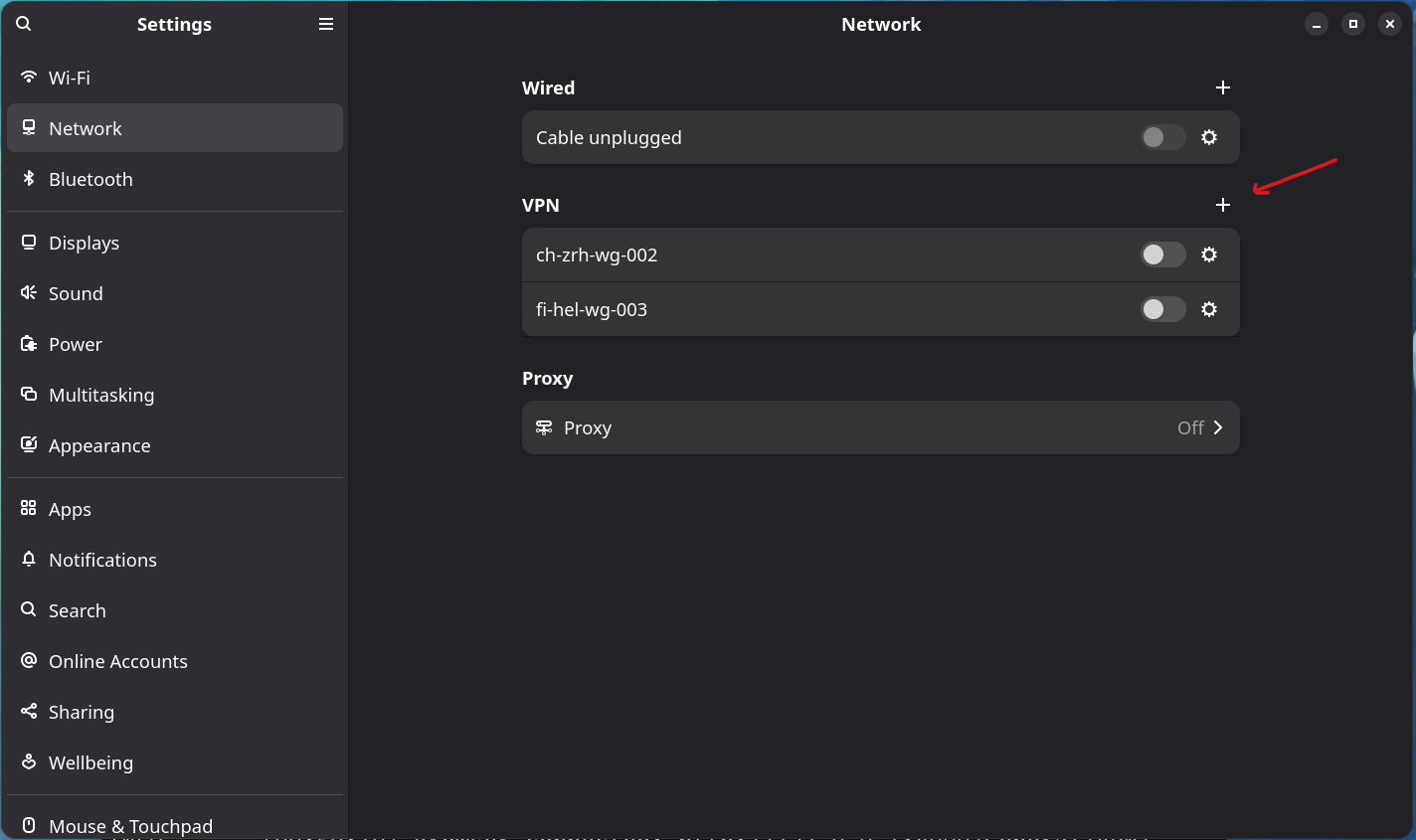
4. Choose "Import From file..."

5. Select your downloaded configuration file.