Steam Gaming Mode Quirks and Workarounds
How do I use my microSD card that I used on my Steam Deck running SteamOS?
Open a host terminal and enter this command:
ujust switch-to-ext4
How do I specify the correct monitor for Gaming Mode to use? (HTPC only)
In Desktop Mode, open a host terminal and run this command:
mkdir ~/.config/environment.d
nano ~/.config/environment.d/10-gamescope-session.conf
Then add this to the file:
OUTPUT_CONNECTOR=DP-1
Change DP-1 to the correct output.
You can find your display outputs using the command
KDE:
kscreen-doctor -o
GNOME:
gnome-randr
Note
It has been reported that some systems dont properly report the Display Output name when using gnome-randr, you can run the command below to list all the connected output names without any details so that you can compare them with what the above commands report.
grep -r '^connected' /sys/class/drm/*/status | grep -Po 'card.?-\K([^/]*)'
Save with CTRL + X then pressing Y followed by ENTER
Audio output not working (Default Device)
This issue happens usually with HDMI TV audio. Go into Desktop Mode and into the system settings to adjust the sound settings. Disable devices that do not match the sound output that you're using. An example of this is disabling all the things that aren't HDMI for your TV audio.
Change physical keyboard layout for Steam Gaming Mode
Steam Gaming Mode has no official way to change the physical keyboard layout and will always default to the US layout. If you want to change the layout, then you can set the environment variable XKB_DEFAULT_LAYOUT=no replacing no with the correct layout for you.
Add this environment variable to ~/.config/environment.d/10-gamescope-session.conf Basically, make sure hidden files is turned on and move into the Home directory, then go into the .config directory and enter the environment.d directory. Inside that directory, the file that should be edited with a text editor should be saved as "10-gamescope-session.conf" for it to work properly.
(Please note, if both the "10-gamescope-session.conf" file and/or "environment.d" folder does not exist already, then create it.)
This works in Desktop Mode including running Nested Gamescope and also works for Nested Desktop, but it has its own quirks: altgr + 2 to write "@" on the Norwegian layout will still not work, but the basic keyboard layout will always work. The altgr key is luckily not needed for normal typing on the Norwegian layout, however altgr has been reported to work on the French layout, but your mileage may vary.
How do I disable certain "Steam Deck" features that conflict with my setup?
Scenarios where this is desirable:
> Example 1: Keyboard and mouse is not working for this title.
> Example 2: The game’s launcher for adjusting video settings or adding mods does not launch.
> Example 3: Certain features/options are not available that should be.
Open the game's properties on Steam and enter this launch option:
SteamDeck=0 %command%
Why do specific Decky Loader plugins not function on Bazzite?
Some plugins are built specifically for SteamOS or the Steam Deck, and won’t necessarily work on Bazzite or non-Steam-Deck hardware.
For example, the DeckMTP plugin only works on the Steam Deck models and will not work on other hardware.
How do I use SteamDeckGyroDSU on hardware that isn't the Steam Deck?
You cannot use SteamDeckGyroDSU outside of the Steam Deck, but you can try disabling Steam Input and it may work depending on your hardware and use case.
How do I specify which GPU that Steam Gaming Mode should use?
Open a TTY session with an external physical keyboard using this keyboard combination:
Ctrl+Alt+F4
export-gpu
Alternatively, in Desktop Mode, enter this command in the terminal:
/usr/bin/export-gpu
Select the GPU to use for Steam Gaming Mode.
I lost my "Return to Gaming Mode" shortcut
You can restore this shortcut by opening terminal and running:
ujust restore-gamemode-shortcut
Cannot progress past this screen
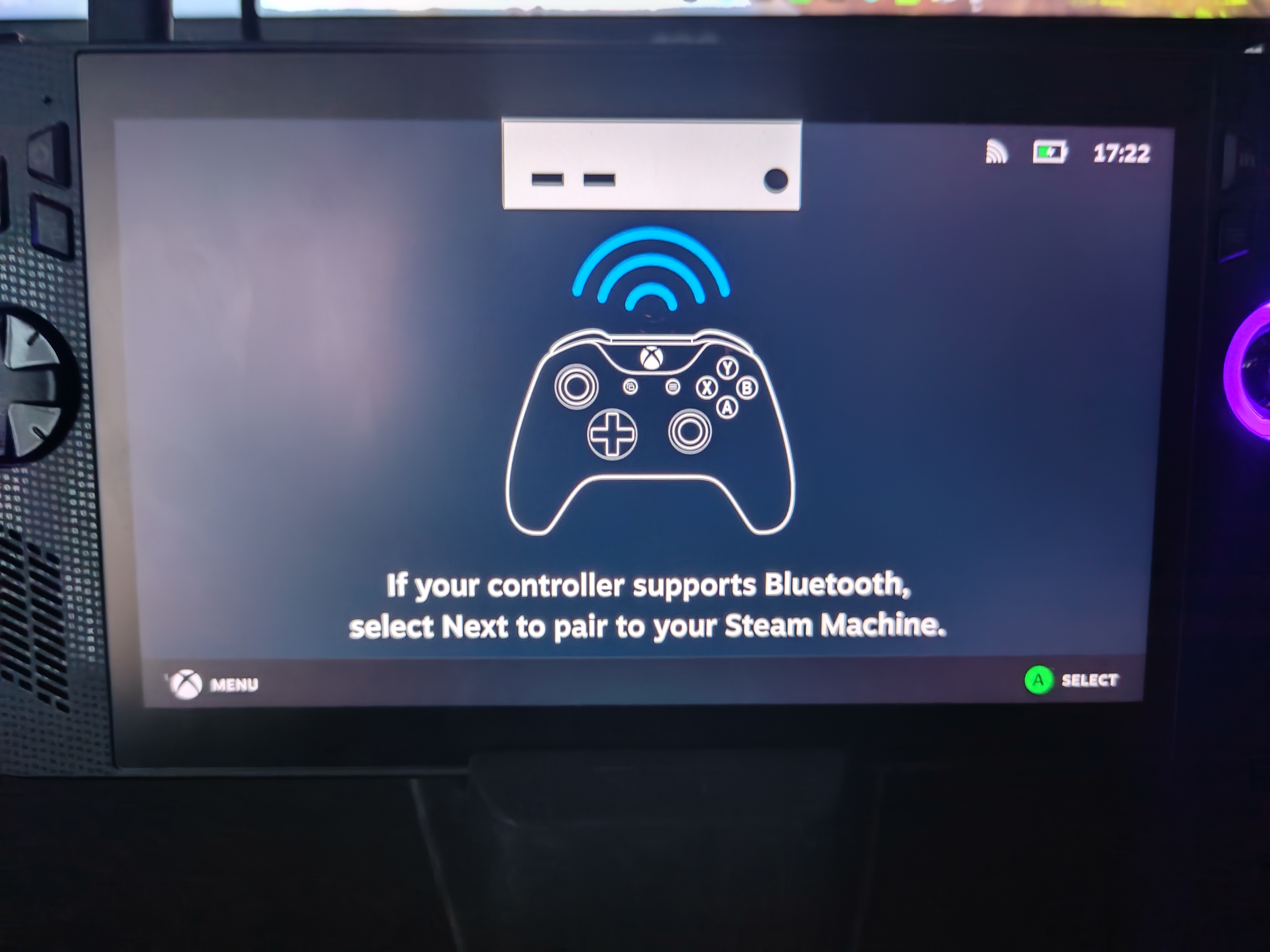
1. Open a TTY session with an external physical keyboard using this keyboard combination:
Ctrl+Alt+F4
2. Login to your user.
3. Enter this command:
steamos-session-select plasma
4. Log into Steam in Desktop mode, and reboot the device.
Stuck on 'Update calculating: Time Remaining'

Reboot the device.
Steam broke and Gaming Mode is broken too
In scenarios where Steam Gaming Mode refuses to start due to an issue with the Steam client.
Desktop Mode Method
Open a host terminal and enter this command:
ujust fix-reset-steam
TTY Method (if you cannot access Desktop Mode)
Access a TTY session with Ctrl+Alt+F4 and login with your Bazzite username and password.
Enter this command:
ujust fix-reset-steam
"Something went wrong while displaying this content" Error
This is most likely due to a broken Decky Loader plugin you have installed. Uninstall the broken plugin. Specific CSS Loader themes can also cause this issue.
Why is VRR not working on my VRR-compatible display?
Most of the time this is because you're connecting the device via HDMI which does not support VRR on Linux. Here is the source of that information.
Rainbow Display
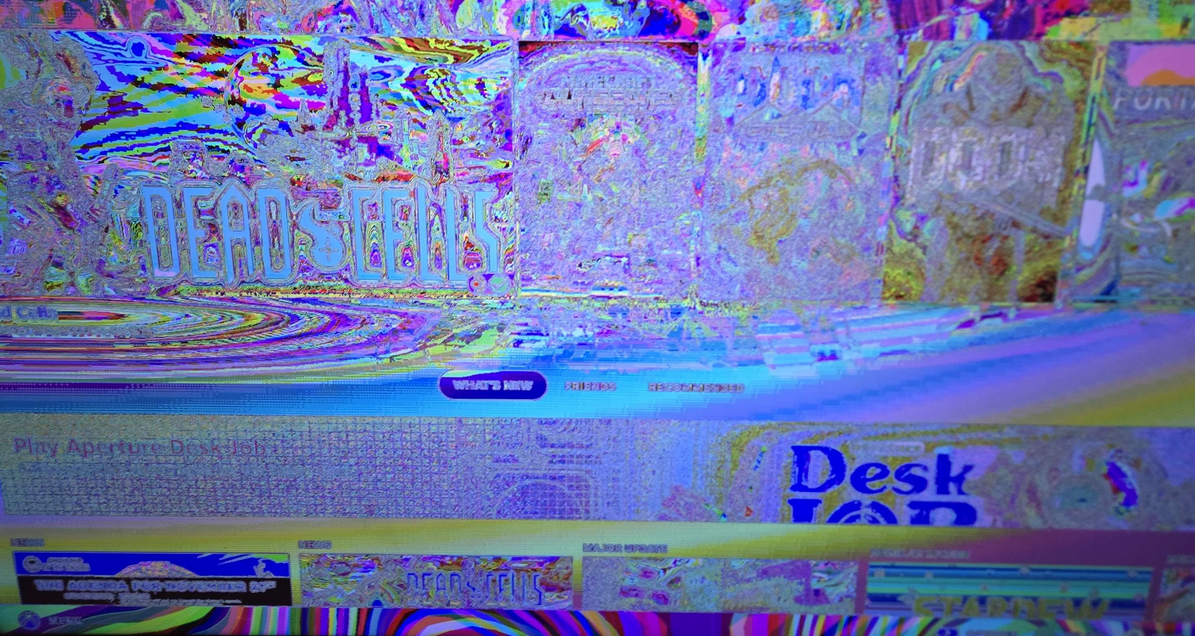
Toggle HDR on and off in the Quick Access Menu.
However, you may need to enable "Force Composite" found in the Developer Options, which also has to be enabled in the Steam settings beforehand.
Stuck at the Bazzite logo
- Opening a TTY session with an external physical keyboard using this keyboard combination and entering this command:
Ctrl+Alt+F4 - Login to your user.
- Enter this command:
ujust fix-reset-steam
Reboot the system.
Alternative Method
Attention
Try rebooting your device first before proceeding with the next steps! You may lose your games, saves, and other content if this is done incorrectly.
- Open a TTY session with an external physical keyboard using this keyboard combination and entering this command:
Ctrl+Alt+F4 andmv ~/.local/share/Steam ~/.local/share/Steam1 - This command will rename the
Steamdirectory toSteam1, and it will force Steam to reinitialize and create a new directory. - You can move your games from the renamed
Steam1directory to the newSteamdirectory if you had any installed previously on your internal storage. - Exit the TTY session by entering this keyboard combination: Ctrl + Alt + F2.
Video Tutorial
Nvidia GPU Exclusive Issues with Steam Gaming Mode
- "Enable GPU accelerated rendering in web views (requires restart)" must be enabled in the Steam settings for better performance in the UI.
- Enabling this option will most likely cause game-breaking graphical artifacts.
- HDR can cause game-breaking graphical artifacts.